Programming the MAG-BOARD
The MAG-BOARD is delivered with a preloaded gradiometer firmware.
If you are using the standard FG Sensors firmware and do not need to modify the code, you can skip this section. If you want to customize the software, you can program the MAG-BOARD using Arduino IDE and the open-source code provided by FG Sensors.
The open-source gradiometer program available on the website does not support connection to the FG Sensors App Android application.
Requirements
Before programming the MAG-BOARD, prepare the following:
- MicroUSB cable
- Arduino IDE
- ESP32 board support package
- Required Arduino libraries
Step 1 — Install Arduino IDE
Download and install Arduino IDE from the official Arduino website.
After installation, open Arduino IDE and prepare it for ESP32 support.
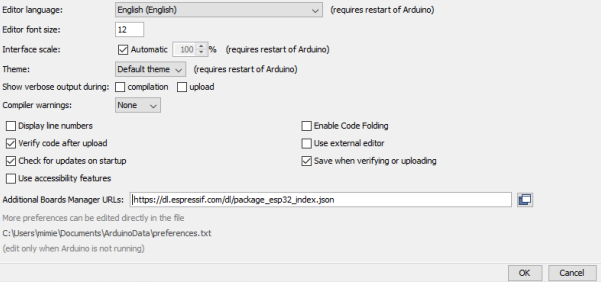
Step 2 — Add ESP32 Board Manager URL
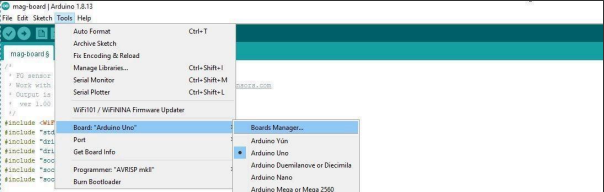
The MAG-BOARD uses an ESP32-based controller, so you must install ESP32 board support in Arduino IDE.
- Open File → Preferences
- Find the field Additional Boards Manager URLs
- Add the following URL:
https://dl.espressif.com/dl/package_esp32_index.json
This enables Arduino IDE to download and install ESP32 board definitions.
Step 3 — Install ESP32 Board Package
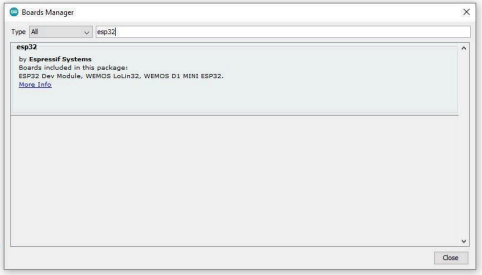
- Open Tools → Board → Boards Manager
- Search for:
esp32 - Install the ESP32 board package
After installation, the required ESP32 targets will be available in Arduino IDE.
Step 4 — Select the Board
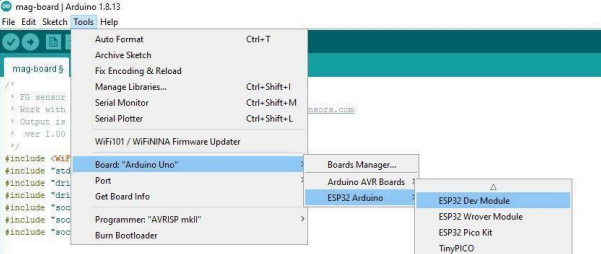
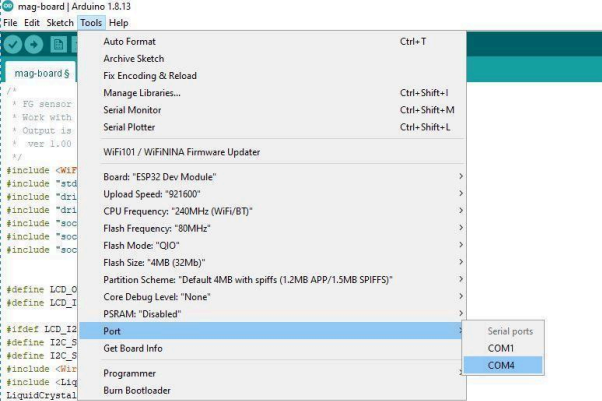
- Open Tools → Board
- Select: ESP32 Dev Module
Step 5 — Select the Serial Port
Connect the MAG-BOARD to your computer using the MicroUSB cable, then:
- Open Tools → Port
- Select the COM port corresponding to your connected MAG-BOARD
Your port name may vary depending on your operating system (e.g. COM4 on Windows, /dev/ttyUSB0 on Linux).
Step 6 — Install Required Libraries
Open Sketch → Include Library → Manage Libraries and install the following:
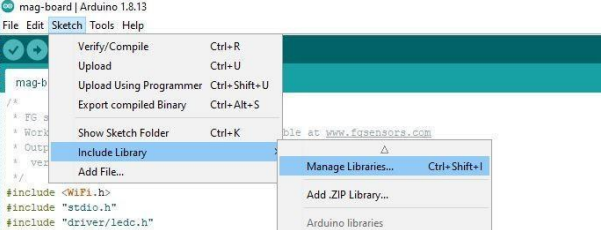
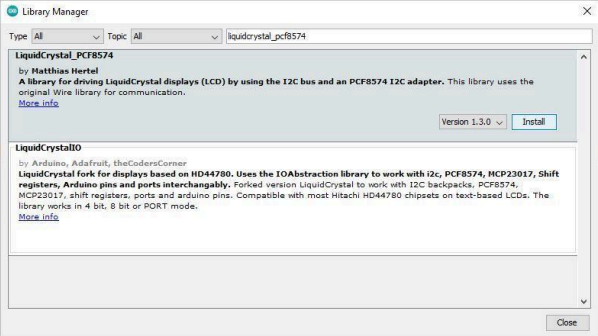
LCD Library
Search for: liquidcrystal_pcf8574 and install it.
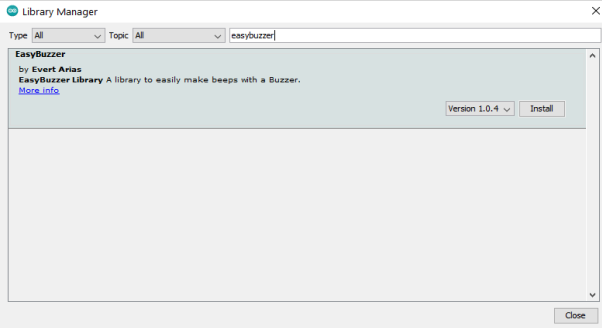
Buzzer Library
Search for: easybuzzer and install it.
Step 7 — Upload the Firmware
- Open the FG Sensors gradiometer source code in Arduino IDE
- Verify the project builds successfully
- Click the Upload button
Arduino IDE will compile the firmware and transfer it to the MAG-BOARD.
Typical Programming Workflow
Install Arduino IDE
→ Add ESP32 Board URL
→ Install ESP32 package
→ Select ESP32 Dev Module
→ Select COM port
→ Install required libraries
→ Open source code
→ Upload firmware
Notes
- The MAG-BOARD already includes a preloaded gradiometer program
- Programming is only necessary if you want to modify or replace the firmware
- The open-source code version does not support the FG Sensors Android application
Troubleshooting
Board not detected
- check the MicroUSB cable
- reconnect the board
- verify the correct COM port is selected
Upload fails
- confirm ESP32 Dev Module is selected
- verify the ESP32 package is installed correctly
- check that the correct serial port is chosen
LCD or buzzer functions do not work
- confirm both libraries are installed:
liquidcrystal_pcf8574easybuzzer
Next Step
If you do not want to compile the firmware from source, continue to:
This method uses the prebuilt firmware image and a flashing tool instead of Arduino IDE.