Firmware Installation (BIN)
Instead of compiling the firmware from source, the MAG-BOARD can also be programmed using a precompiled firmware binary file (.BIN).
This method is faster and recommended if you simply want to install the official FG Sensors firmware without modifying the code.
The firmware can be uploaded using the ESP32 Flash Download Tool.
Requirements
Before starting the firmware installation process, prepare the following:
- MAG-BOARD
- MicroUSB cable
- Computer
- Official firmware .BIN file
- ESP32 Flash Download Tool
The firmware file can be downloaded from the FG Sensors website.
Step 1 — Download Firmware
Download the official MAG-BOARD firmware binary (.BIN) from the FG Sensors website.
Save the file to a known location on your computer.
Step 2 — Download Flash Download Tool
Download the ESP32 Flash Download Tool from the Espressif website and extract and run the program.
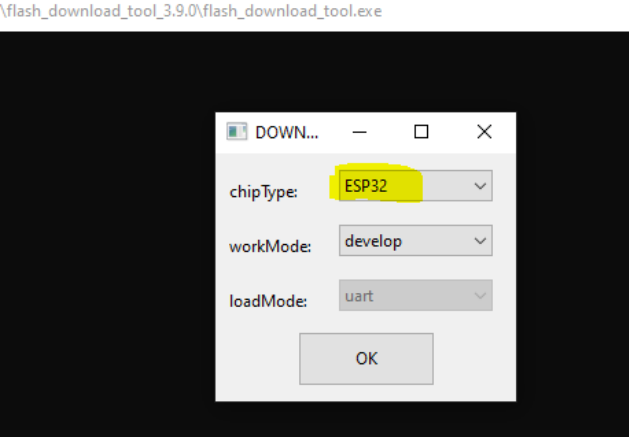
Step 3 — Select ESP32 Chip Type
When the Flash Download Tool starts:
- Select ESP32
- Click OK
This configures the tool for programming ESP32-based devices.
Step 4 — Configure Firmware Upload
In the Flash Download Tool interface:
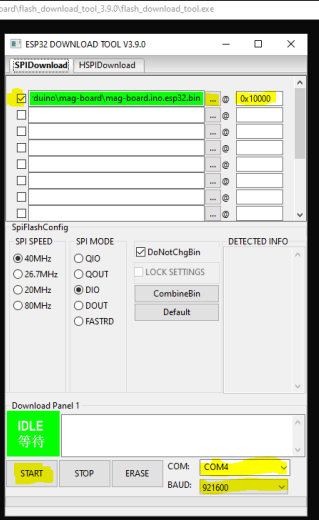
- Click the "..." button
- Select the downloaded MAG-BOARD firmware .BIN file
- Enable the checkbox next to the selected firmware
Set the firmware address to:
0x10000
Step 5 — Select Communication Port
Choose the serial port connected to the MAG-BOARD (e.g. COM4). Your port number may differ depending on your system.
Step 6 — Set Baud Rate
Set the flashing speed to:
921600
This ensures fast firmware upload to the ESP32 controller.
Step 7 — Start Firmware Upload
Click the START button.
The Flash Download Tool will begin uploading the firmware to the MAG-BOARD. Wait until the process finishes successfully.
Firmware Upload Workflow
Download firmware (.BIN)
→ Install Flash Download Tool
→ Select ESP32 chip
→ Load firmware file
→ Set address 0x10000
→ Select COM port
→ Set baud 921600
→ Click START
Verifying Installation
After the upload is complete:
- Disconnect and reconnect the MAG-BOARD
- Power the board
- The gradiometer firmware should start automatically
If the LCD and sensors are connected correctly, the system should display measurement values.
Troubleshooting
Firmware upload fails
- verify the correct COM port is selected
- ensure the MAG-BOARD is connected with a working USB cable
- restart the Flash Download Tool
Board not detected
- reconnect the USB cable
- verify the USB drivers are installed
- check the correct COM port in Device Manager
Next Step
After installing the firmware, continue with: