DIY Gradiometer Kit — WLAN-Verbindungsbehebung
Dieses Verfahren behebt WLAN-Verbindungsprobleme am MAG-BOARD des DIY Gradiometer Kits. Es umfasst drei Phasen: einen ersten Werksflash, einen Firmware-Upload über die Arduino IDE und einen abschließenden Firmware-Flash.
WiFi-Fix-Paket herunterladen (.zip)
Das ZIP-Archiv enthält die .bin-Firmware-Dateien und den mag-board_user Arduino-Sketch, die für alle drei Phasen benötigt werden.
Anforderungen:
- MAG-BOARD über USB mit PC verbunden
- ESP32 Flash Download Tool
- Arduino IDE (kostenlose Version)
- Dateien
factory_WROOM-32.binundmag_board_v1.32.binaus dem.bin-Verzeichnis - MAG-BOARD-Benutzersoftware aus dem Verzeichnis
mag-board_user
Phase 1 — Erster Flash
-
Verbinden Sie das MAG-BOARD über USB mit Ihrem PC.
-
Öffnen Sie das ESP32 Flash Download Tool.
-
Wählen Sie im Konfigurationsfenster folgende Optionen und klicken Sie auf OK:
- ChipType: ESP32
- WorkMode: Develop
- LoadMode: UART

-
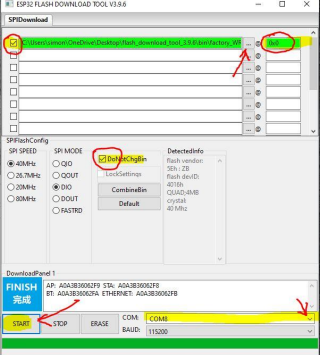
Im Flash-Konfigurationsbereich:
- Aktivieren Sie den ersten Datei-Slot und wählen Sie
factory_WROOM-32.bin(im.bin-Verzeichnis) - Setzen Sie die Flash-Adresse auf
0x0 - Stellen Sie sicher, dass DoNotChgBin ausgewählt ist
- Aktivieren Sie den ersten Datei-Slot und wählen Sie
-
Wählen Sie den richtigen COM-Port für Ihr MAG-BOARD.
-
Klicken Sie auf START und warten Sie, bis das Panel FINISH anzeigt.
Phase 2 — Arduino IDE Upload
Nach Phase 1 verfügen Sie über eine gültige Firmware für die WLAN-Verbindung, aber Phase 2 und Phase 3 sind noch erforderlich, um die Behebung abzuschließen.
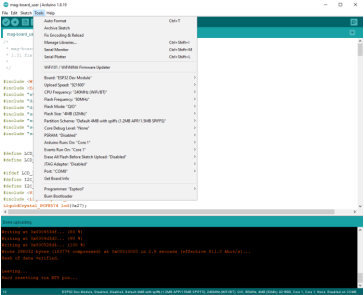
- Öffnen Sie die Arduino IDE.
- Laden Sie die MAG-BOARD-Benutzersoftware aus dem Verzeichnis
mag-board_userauf das Board hoch.
Phase 3 — Zweiter Flash
-
Öffnen Sie das ESP32 Flash Download Tool erneut.
-
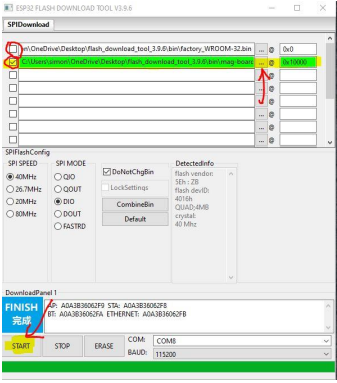
Aktualisieren Sie die Flash-Konfiguration:
- Deaktivieren Sie den
factory_WROOM-32.bin-Datei-Slot - Aktivieren Sie einen Datei-Slot und wählen Sie
mag_board_v1.32.bin - Setzen Sie die Flash-Adresse auf
0x10000
- Deaktivieren Sie den
-
Klicken Sie auf START und warten Sie, bis das Panel FINISH anzeigt.
Die WLAN-Verbindungsbehebung ist nun abgeschlossen.
Fehlerbehebung
COM-Port wird nicht erkannt
- Überprüfen Sie den Geräte-Manager auf Treiberfehler
- Installieren Sie je nach Hardware-Revision den CP210x- oder CH340-USB-zu-UART-Brückentreiber
FINISH wird nicht angezeigt / Upload schlägt fehl
- Stellen Sie sicher, dass das USB-Kabel Datenübertragung unterstützt (kein reines Ladekabel)
- Versuchen Sie einen anderen USB-Port
- Starten Sie das Flash Download Tool neu und wiederholen Sie ab Phase 1
Fehler oder Absturz nach der Reparatur
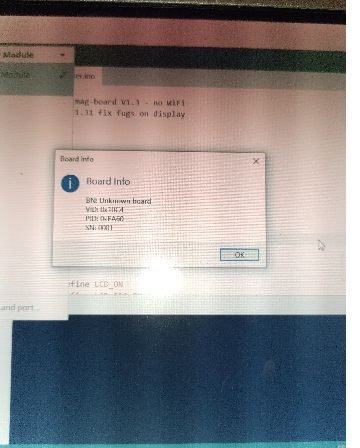
- Möglicherweise fehlt eine erforderliche Arduino-Bibliothek. Stellen Sie sicher, dass alle für den
mag-board_user-Sketch benötigten Bibliotheken in der Arduino IDE installiert sind, und wiederholen Sie Phase 2.
Leerer Bildschirm nach der Reparatur
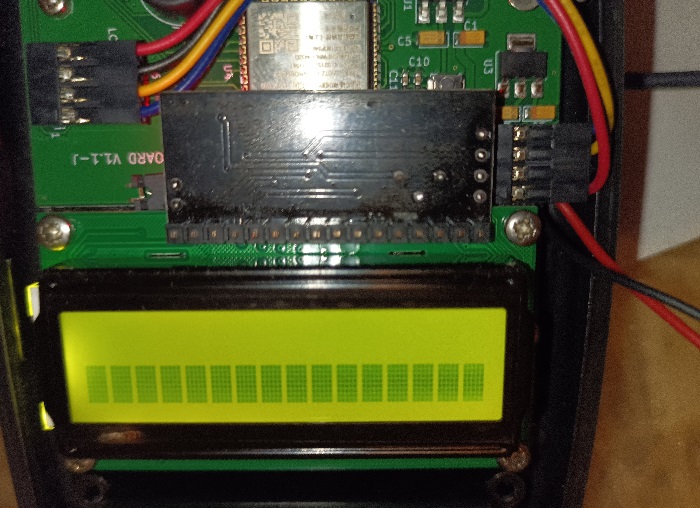
Wenn das MAG-BOARD nach der Reparatur einen leeren Bildschirm zeigt, muss die Display-Firmware mit dem Flash Tool neu geflasht werden.
-
Laden Sie die folgenden Ressourcen herunter:
-
Entpacken Sie die ZIP-Datei und starten Sie das Flash Tool. Wenn der Startdialog erscheint, setzen Sie chipType auf ESP32 und lassen Sie alle anderen Einstellungen unverändert. Klicken Sie dann auf OK.

-
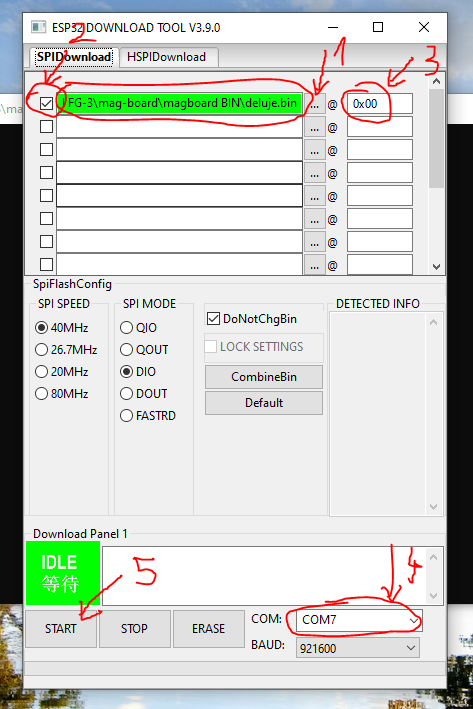
Im Hauptfenster des Flash Tools:
- Aktivieren Sie das Kontrollkästchen neben dem ersten Datei-Slot.
- Klicken Sie auf
..., umdeluje.binaus dem entpackten Ordner auszuwählen. - Tragen Sie als Flash-Adresse
0x00ein. - Wählen Sie den richtigen COM-Port Ihres MAG-BOARD aus der Dropdown-Liste unten aus.
- Klicken Sie auf START und warten Sie, bis sich der Status von IDLE auf FINISH ändert.
-
Sobald FINISH erscheint, trennen Sie das MAG-BOARD und verbinden Sie es erneut. Das Display sollte nun normal anzeigen.