DIY Gradiometer Kit — WiFi Connection Fix
This procedure fixes WiFi connection issues on the MAG-BOARD used in the DIY Gradiometer Kit. It involves three phases: an initial factory flash, a firmware upload via Arduino IDE, and a final firmware flash.
Download WiFi Fix Package (.zip)
The ZIP contains the .bin firmware files and the mag-board_user Arduino sketch needed for all three phases below.
Requirements:
- MAG-BOARD connected to PC via USB
- ESP32 Flash Download Tool
- Arduino IDE (free version)
factory_WROOM-32.binandmag_board_v1.32.binfiles from the.bindirectory- MAG-BOARD user software from the
mag-board_userdirectory
Phase 1 — Initial Flash
-
Connect the MAG-BOARD to your PC via USB.
-
Open the ESP32 Flash Download Tool.
-
In the configuration window, select the following and click OK:
- ChipType: ESP32
- WorkMode: Develop
- LoadMode: UART

-
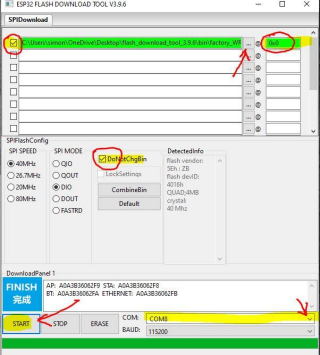
In the flash configuration panel:
- Check the first file slot and select
factory_WROOM-32.bin(located in the.bindirectory) - Set the flash address to
0x0 - Ensure DoNotChgBin is selected
- Check the first file slot and select
-
Select the correct COM port for your MAG-BOARD.
-
Click START and wait until the panel shows FINISH.
Phase 2 — Arduino IDE Upload
After Phase 1 you will have valid firmware for WiFi connection, but Phase 2 and Phase 3 are still required to complete the fix.
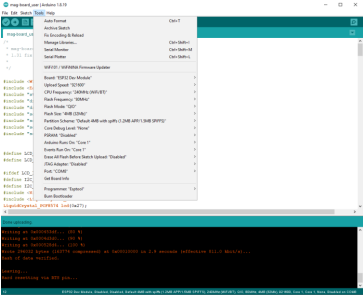
- Open Arduino IDE.
- Upload the MAG-BOARD user software located in the
mag-board_userdirectory to the board.
Phase 3 — Secondary Flash
-
Re-open the ESP32 Flash Download Tool.
-
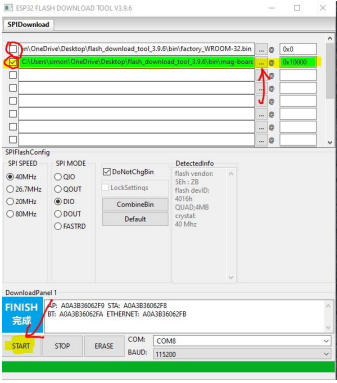
Update the flash configuration:
- Uncheck the
factory_WROOM-32.binfile slot - Check a file slot and select
mag_board_v1.32.bin - Set the flash address to
0x10000
- Uncheck the
-
Click START and wait until the panel shows FINISH.
The WiFi connection fix is now complete.
Troubleshooting
COM port not detected
- Check Device Manager for driver errors
- Install the CP210x or CH340 USB-to-UART bridge driver depending on your hardware revision
FINISH not shown / upload fails
- Verify the USB cable supports data transfer (not charge-only)
- Try a different USB port
- Restart the Flash Download Tool and retry from Phase 1
Error or crash after completing the fix
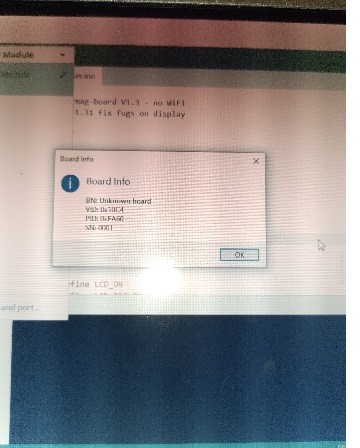
- A required Arduino library is likely missing from your Arduino IDE installation. Ensure all libraries needed by the
mag-board_usersketch are installed, then repeat Phase 2.
Blank screen after completing the fix
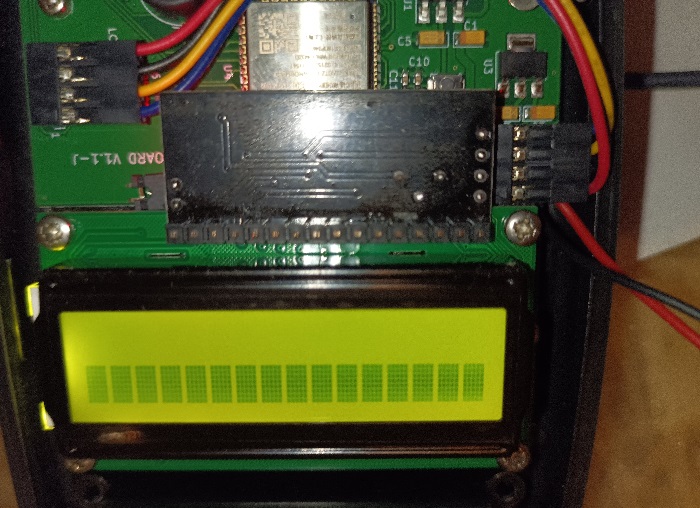
If the MAG-BOARD shows a blank screen after the fix is complete, the display firmware needs to be re-flashed separately using the Flash Tool.
-
Download the resources:
-
Extract the ZIP and run the Flash Tool. When the startup dialog appears, set chipType to ESP32 and leave all other settings unchanged, then click OK.

-
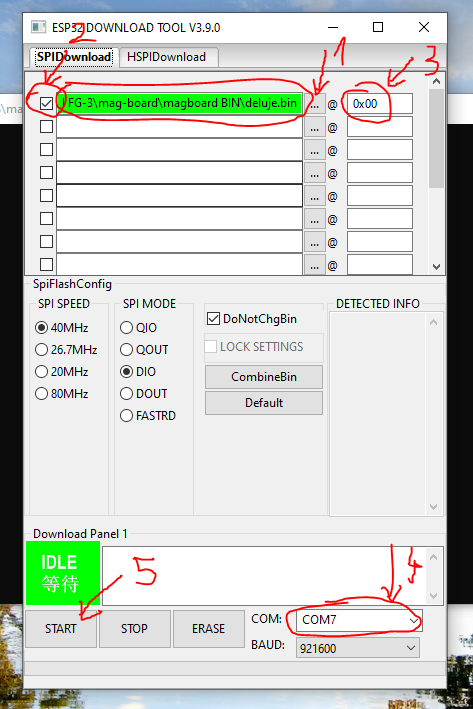
In the Flash Tool main window:
- Check the checkbox next to the first file slot.
- Click
...to browse for and selectdeluje.binfrom the extracted folder. - Set the flash address field to
0x00. - Select the correct COM port for your MAG-BOARD from the dropdown at the bottom.
- Click START and wait for the status to change from IDLE to FINISH.
-
Once FINISH appears, disconnect and reconnect the MAG-BOARD. The display should now show normally.